Firmware 0.90
USB Mac Bridge Prototype
For A2Pico 2 Lite and A2Pico + Pico 2 boards with no radio. Flash the matching UF2, run the Mac menubar app, plug USB, and the Apple II can browse and boot streamed disks through the Mac's network.
This is an early experiment so no-radio hardware can try the CoGS stack. The main CoGS path is still the CoGS Card (in development), or a Pico 2 W with onboard Wi‑Fi.
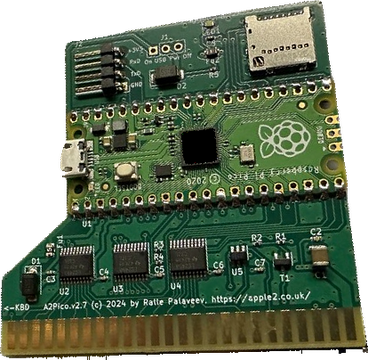 A2Pico
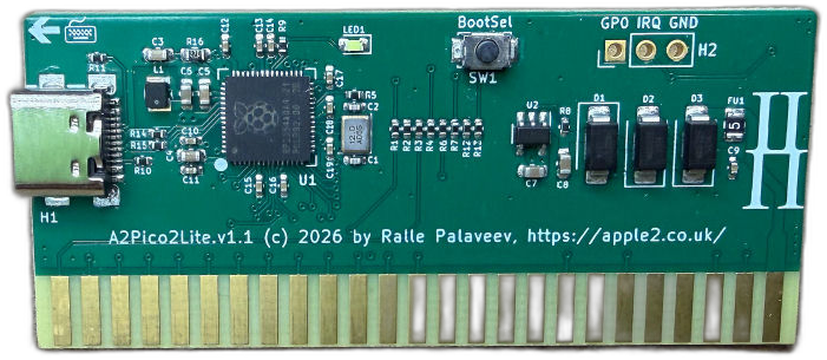 A2Pico2Lite
These are the two boards the prototype firmwares target. Photos courtesy of JCM; click a card for the product page.
Downloads
Setup Instructions Below or Download PDF HereSetup instructions
What you need
- An Apple II / IIGS with an A2Pico carrier (full board or Lite).
- A Pico 2 with no radio, flashed with the matching UF2 above.
- A Mac on the same desk, already online (Wi‑Fi or Ethernet).
- A USB cable from the Pico to the Mac.
Slot
- IIGS: Slot 7 with Control Panel set to Scan works well. Or put the card in slot 5, set that slot to Your Card, and set Startup Slot to 5.
- 8-bit (][+, //e): Slot 7 is the usual recommendation so the machine finds the card on a normal boot scan. Any free slot works once you boot or enter the CoGS ROM from that card.
Flash, USB, power
- Flash the UF2 that matches your board (hold BOOTSEL once, or use picotool when CDC is up). You only ever need that USB flash once for bring-up; after that you can flash future firmware updates directly from CoGS Config on the Apple (About / Update) when the Bridge link is up.
- Seat the card in the slot you chose. Connect USB to the Mac.
- Unzip and open CoGS USB Bridge. Wait for green Connected (Firmware 0.90).
- Power on the Apple II.
Order that works well: USB in → Bridge Connected → power the Apple.
Enter the CoGS ROM
Right after power on, tap C or M to open the on-card config ROM (no desk accessory required). If there is no bootable volume on the card yet, the ROM often appears on its own. From GS/OS you can also use the CoGS CDA once it is installed.
One minute to running
Card in slot → USB attached → Mac Bridge green Connected → power on the Apple II → tap C or M → choose Browse Disks → pick a title → Return to mount or Boot → you are running, streaming over the Mac's network.
CoGS basics in the ROM
- Card Status should show link
USB-BRIDGEwhen the Mac app is connected. - Browse Disks is the live catalog. Pick a disk, then Boot or mount it to a drive.
- Disk Drives shows what is on D1/D2/…. Clear a bad secondary mount before GS/OS boots.
- Network Tools covers DNS, ping, TCP check, and connectivity self-test. Traceroute and LAN share scan are not on USB Bridge yet.
- About / Update shows the firmware version and can flash updates when linked.
What works (iron, Lite 0.90)
- Browse Disks, HTTPS range GETs, boot streamed images (including large GS/OS).
- ROM / CDA on a GS/OS session; ROM 0 and slot 7 Control Panel scan exercised.
- DNS lookup, ping, TCP port check, and connectivity self-test (via the Mac).
Known limits
Slower large boots than Wi‑Fi. SRAM window cache only; flash L2 and background prefetch are off over USB for now.
Traceroute is not available on USB Bridge.
LAN Image Manager share scan (S on Image Source) is not available; type a catalog URL by hand.
Clear unused SmartPort units (for example a bad image on D2) before a GS/OS boot test; a bad secondary mount can fail the boot even when D1 is fine.
Mac sleep or quitting the Bridge drops the link.
This is not a substitute for onboard Wi‑Fi as the primary CoGS story.
Bugs and questions
Send bug reports and questions to info@a2cogs.com (same Notify path as the main site). Please include board (Lite or A2Pico+Pico 2), firmware version from the Bridge status, and what you were doing when it failed.